For Windows — out now
Turn everyday videos into one shareable highlight — instantly.
Drop in the clips from a trip or a weekend at home, press Create, and Daysta finds the moments worth keeping and cuts them to the beat of your music. No editing experience needed. Your footage never leaves your PC.

Free to start, with an optional one-time Premium in-app purchase. See the Microsoft Store for pricing.
01WHAT DAYSTA IS
The footage you shot and forgot.
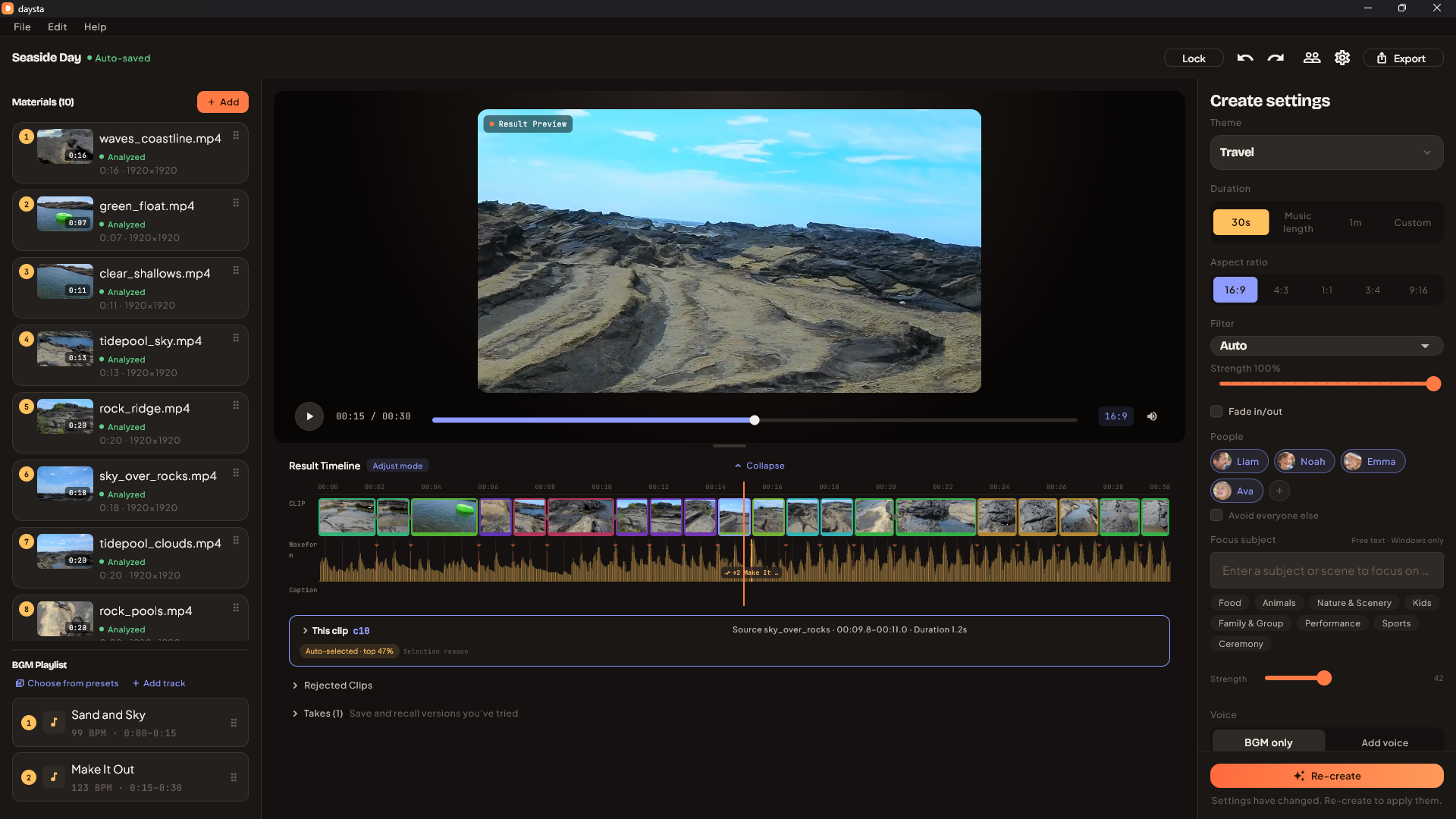
Daysta is a Windows app that looks through the video piling up on your drive, picks the moments worth showing, and cuts them into a single highlight. Add your materials, press Create, and it scores what it sees and edits to the beat of the track you chose. Clips stay in the order you shot them, so a trip or a recipe still reads as a story.
It does not stop at automatic. Every chosen scene can be replaced, split or trimmed on the result timeline, and you can read the selection reason for each one. If it is not right, re-create as many times as you like. Because it runs on a PC, there is no limit on how long the analysis takes.
02HOW IT WORKS
Three steps
Add your materials
Drop in videos and photos. Daysta references your originals instead of copying them, so it does not double your disk use.
Pick music and duration
Use the bundled music that matches your theme, or your own track. Set the duration from a preset, the music length, or a custom value.
Create
Analysis and editing run on their own. What comes back is yours to adjust before you export it.
03FEATURES
Automatic, and still yours to change.
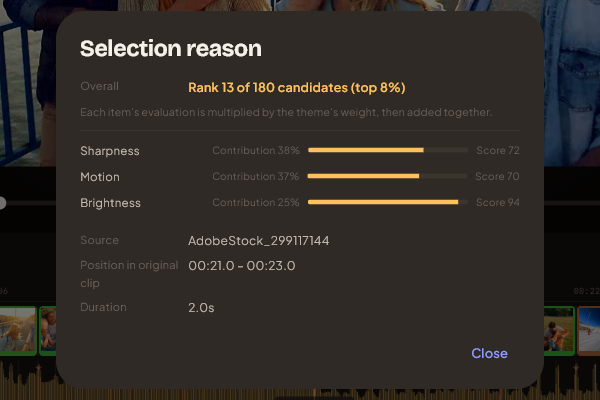
See why each scene made the cut.
Eleven signals go into the score, with diversity taken into account so similar shots do not run back to back. The breakdown and the clip's rank among candidates are there to read.
Cuts that land on the beat.
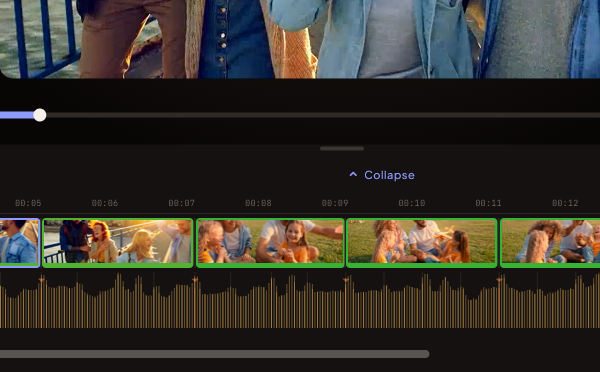
Quiet passages hold longer; busy ones cut faster. You can move any cut point yourself, with the waveform and the beat grid in view.
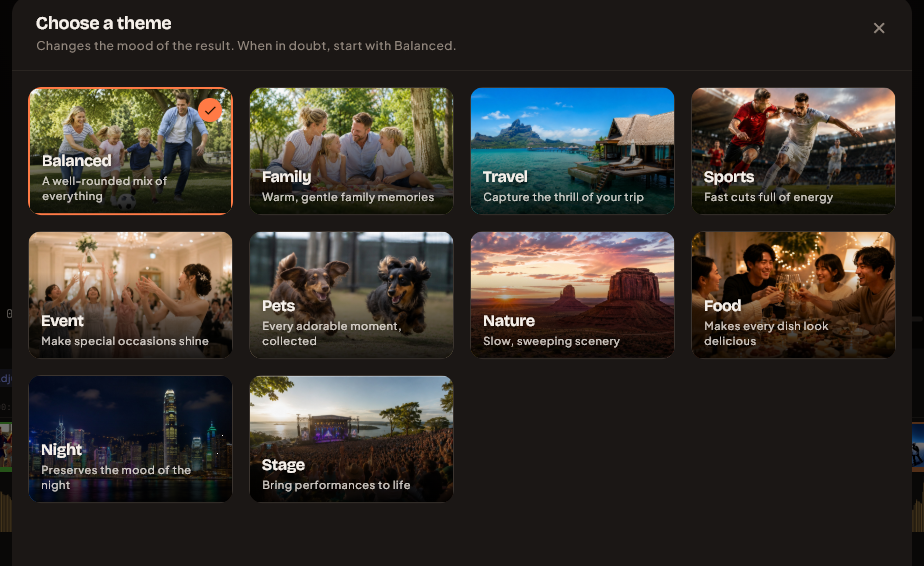
Ten themes, ten different edits.
Family, travel, pets, food and more. Transitions and filters follow the theme you pick, and you can load your own LUT (.cube).
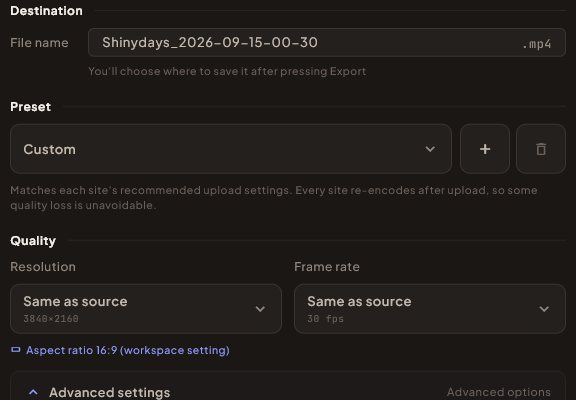
Export for wherever it's going.
H.264 / H.265, hardware encoding, your own bitrate. Vertical, horizontal and square (16:9 / 9:16 / 4:3 / 3:4 / 1:1), with mixed resolutions and frame rates evened out.
Level and steady action camera footage
Footage that recorded gyro data is levelled to the horizon. Without gyro data, the motion is estimated from the picture to smooth out camera shake. If the lens calibration was recorded, fisheye distortion can be straightened too. Corrected scenes are cropped in slightly.
Put someone at the centre
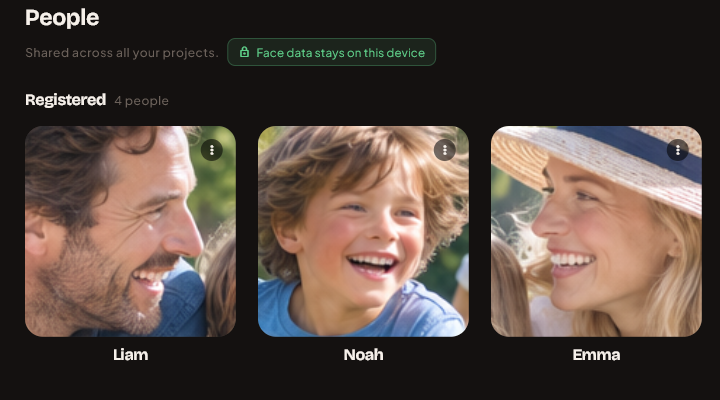
Register a person from a photo in the people library and Daysta favours scenes they appear in. Name several people, or ask it to avoid everyone else. People you register carry over between projects.
Automatic subtitles and captions
Burn automatic subtitles into the video and get an SRT file at the same time. Fix wording, change position, font, colour and size, or place free-standing captions anywhere.
Several tracks, one continuous piece
Line up more than one song in the BGM playlist and Daysta joins them to fit the duration you asked for. It changes track where a phrase boundary in both songs meets a cut in the video, and crossfades on the bar, so the handover reads as part of the edit.
Mark the shot you refuse to lose
In the material viewer, drop a marker at the moment you already know you want. Marked moments are pinned into the selection, and they survive a re-create — so you can ask for a different set of scenes as often as you like without losing that one cut.
Describe the shot you want
The dog running, the jump into the sea. Type what you are looking for and Daysta gives matching scenes priority.